Hướng dẫn cách triển khai cài đặt dịch vụ Active Directory
Thông tin cơ bản:
- HOST_WS2025_200: VM được cài đặt Windows Server 2025
- IP: 192.168.1.200
- SN: 255.255.255.0
- DNS: 192.168.1.200
Nội dung thực hiện:
- Dùng công cụ PowerShell chạy các lệnh cơ bản
- Cài đặt và cấu hình Domain Controller
- Kiểm tra Domain Controller và tạo đối tượng User, Group
- Thực hiện Join Client và Domain
- Cấu hình Password Policy
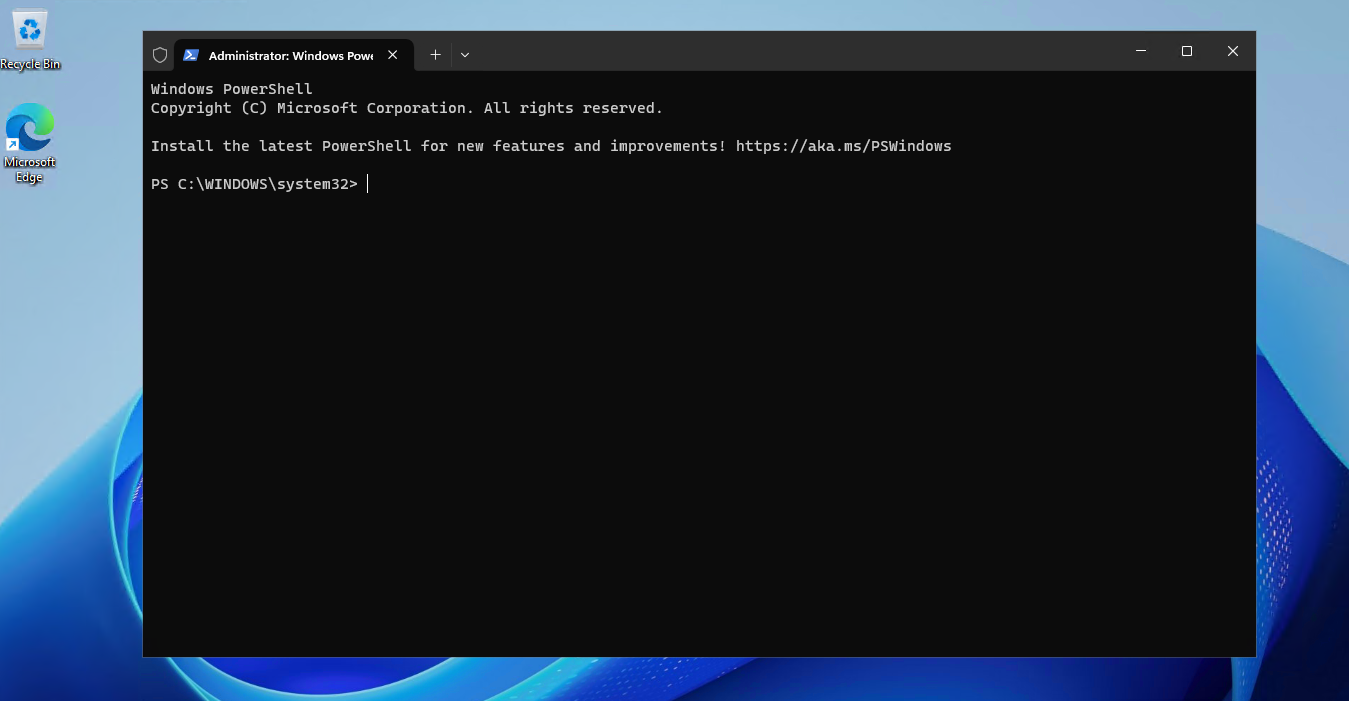
Khởi động giao diện Windows PowerShell với quyền Administrator trên Windows Server 2025 GUI:
Đổi tên máy và khởi động lại:
Rename-Computer -NewName “SRV-DC01” -Force
Restart-Computer -Force
Cấu hình Time Zone UTC+07:00 Bangkok, Hanoi, Jakarta
Set-TimeZone -Id “SE Asia Standard Time”
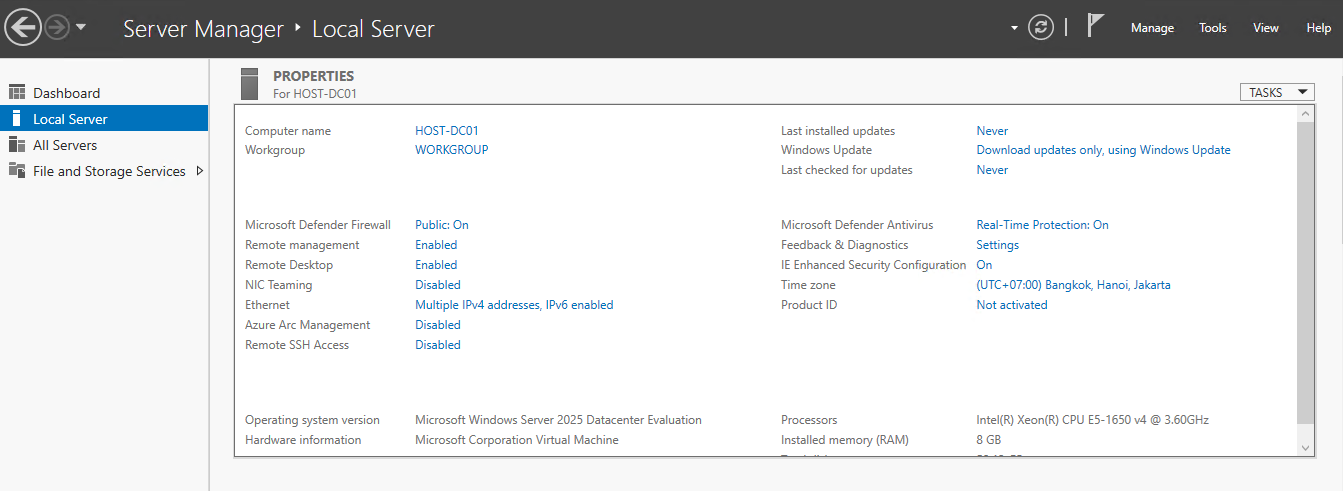
Cấu hình địa chỉ IP và DNS trên Windows Server 2025
$InterfaceAlias = “Ethernet” New-NetIPAddress -InterfaceAlias $InterfaceAlias -IPAddress “192.168.1.200” -PrefixLength 24 -DefaultGateway “192.168.1.10”
Set-DnsClientServerAddress -InterfaceAlias $InterfaceAlias -ServerAddresses (“192.168.1.200″,”8.8.8.8”)
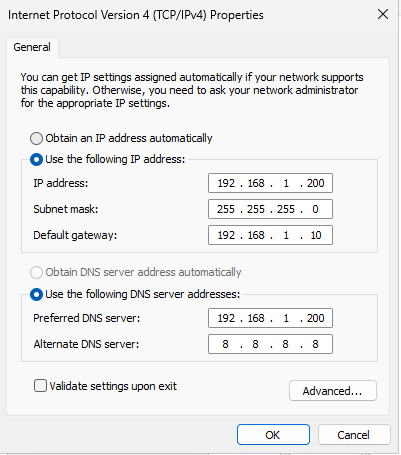
Bật tính năng RDP trên Windows Server 2025
Set-ItemProperty -Path ‘HKLM:\System\CurrentControlSet\Control\Terminal Server’ -Name “fDenyTSConnections” -Value 0 Enable-NetFirewallRule -DisplayGroup “Remote Desktop”
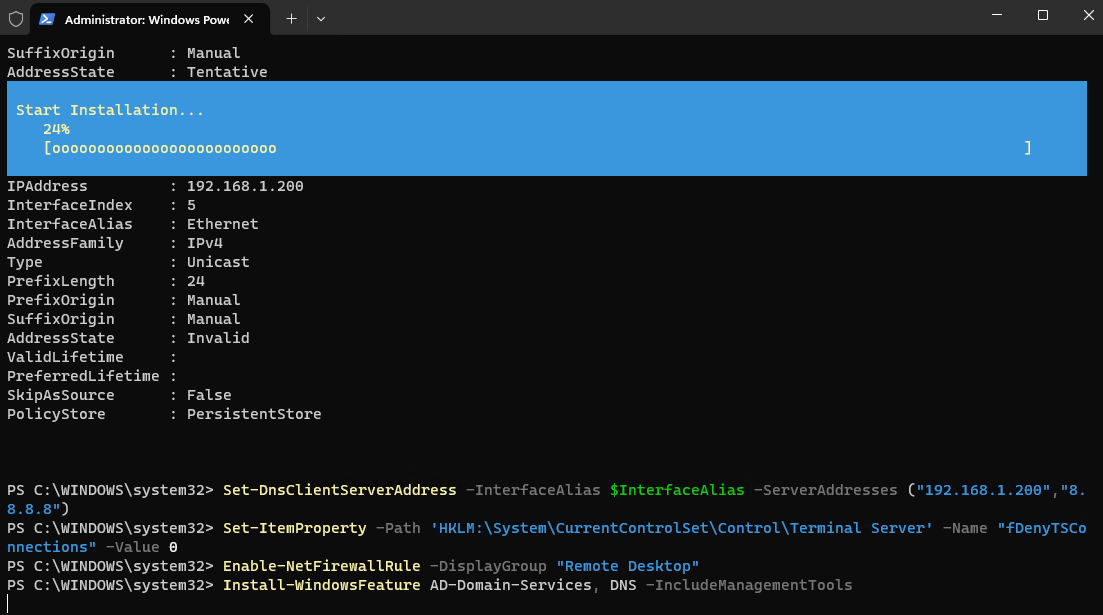
Cài đặt dịch vụ Active Directory và DNS
Install-WindowsFeature AD-Domain-Services, DNS -IncludeManagementTools
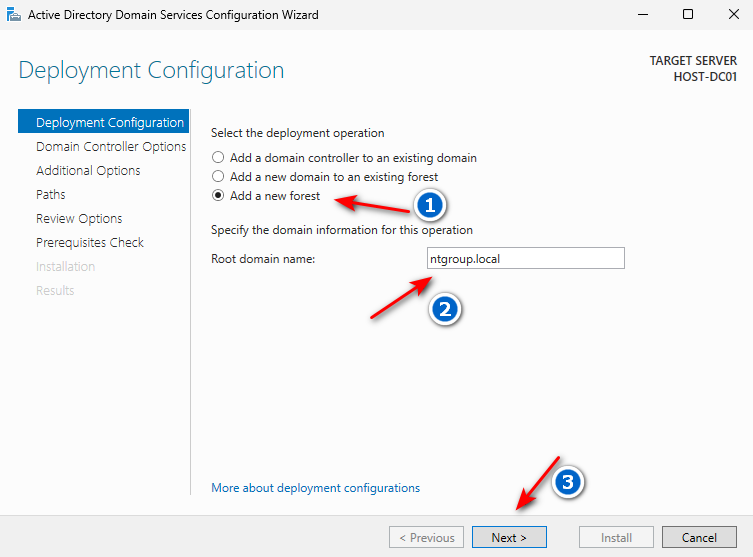
Thực hiện “Promote this server to a domain controller”
Domain Name: NTGROUP.LOCAL
Khai báo các thông tin theo hình bên dưới và chọn Next
Khai báo thông tin DSRM Password và chọn Next (5 lần)
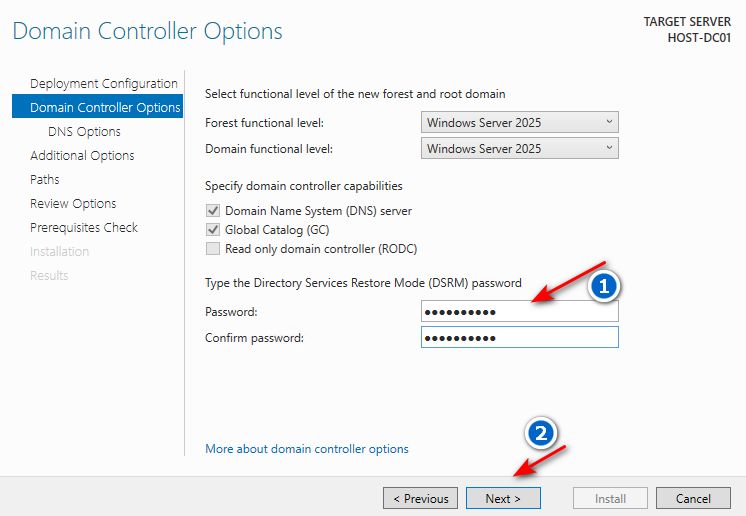
Directory Services Restore Mode (DSRM)
Khi hệ thống Active Directory gặp sự cố nghiêm trọng, bạn sẽ cần khởi động máy chủ Domain Controller vào một chế độ đặc biệt gọi là Directory Services Restore Mode (DSRM) — tương tự như “Safe Mode” nhưng dành riêng cho AD.
Trong chế độ này, dịch vụ Active Directory sẽ bị tắt (offline). Vì AD đang tắt, bạn không thể sử dụng bất kỳ tài khoản Domain nào (kể cả Domain Admin) để đăng nhập vào máy chủ. Lúc này, hệ thống sẽ yêu cầu bạn đăng nhập bằng một tài khoản Local Administrator đặc biệt, và DSRM Password chính là mật khẩu của tài khoản Administrator cục bộ này.
Bạn sẽ cần dùng đến DSRM Password trong các trường hợp thực tế sau:
Khôi phục (Restore) Active Directory: Khi bạn cần khôi phục lại AD từ một bản sao lưu (System State backup) do database bị hỏng, hoặc lỡ tay xóa nhầm một OU/User quan trọng mà không có tính năng AD Recycle Bin.
Bảo trì Database AD (NTDS.dit): Dùng để thực hiện việc chống phân mảnh ngoại tuyến (Offline Defragmentation) giúp giảm dung lượng và tối ưu hóa database của AD.
Cứu hộ hệ thống: Khi DC bị lỗi không thể khởi động vào chế độ bình thường hoặc lỗi đồng bộ (replication) quá nặng cần can thiệp sâu.
Lưu ý đặc biệt quan trọng về DSRM Password
Nhiều quản trị viên hệ thống thường nhầm lẫn hoặc lãng quên mật khẩu này vì nó rất hiếm khi được sử dụng. Dưới đây là những sự thật bạn cần nắm rõ:
Không phải là mật khẩu Domain Admin: DSRM Password hoàn toàn độc lập với mật khẩu Domain Administrator. Nếu bạn đổi mật khẩu Domain Admin, mật khẩu DSRM vẫn giữ nguyên không đổi.
Chỉ được tạo một lần duy nhất lúc cài đặt: Bạn được yêu cầu đặt mật khẩu này khi chạy quá trình cấu hình nâng cấp máy chủ lên thành Domain Controller (lúc chạy lệnh DCPromo hoặc cấu hình qua Server Manager).
Không bao giờ hết hạn: Mật khẩu này không bị ảnh hưởng bởi chính sách mật khẩu (Password Policy) của Domain. Nó sẽ nằm đó vĩnh viễn cho đến khi bạn chủ động đổi nó.
Cách thay đổi mật khẩu (Reset): Nếu bạn vô tình quên mật khẩu này (trong khi DC vẫn đang hoạt động bình thường), bạn không thể đổi nó trong giao diện đồ họa thông thường. Bạn bắt buộc phải dùng công cụ dòng lệnh “NTDSUTIL” để thực hiện reset lại mật khẩu DSRM.
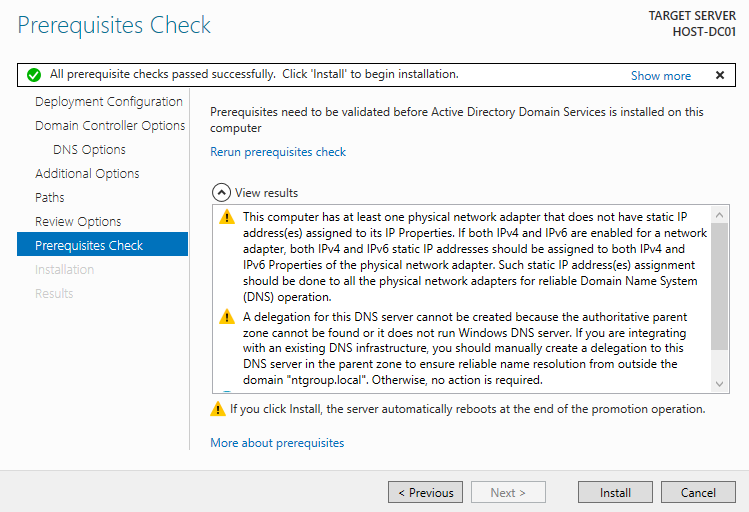
Tại giao diện Prerequisites Check chọn Install
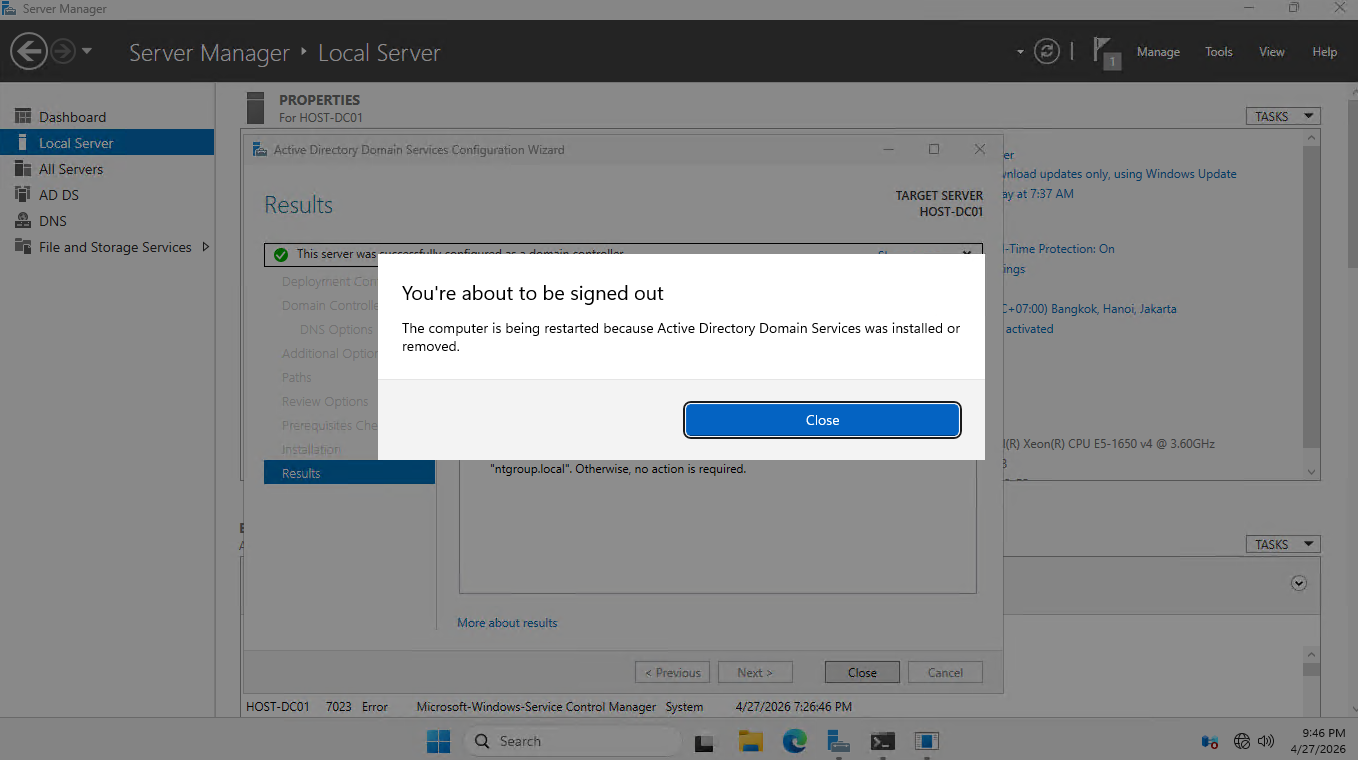
Hệ thống sau khi hoàn tất quá trình sẽ tự động khởi động
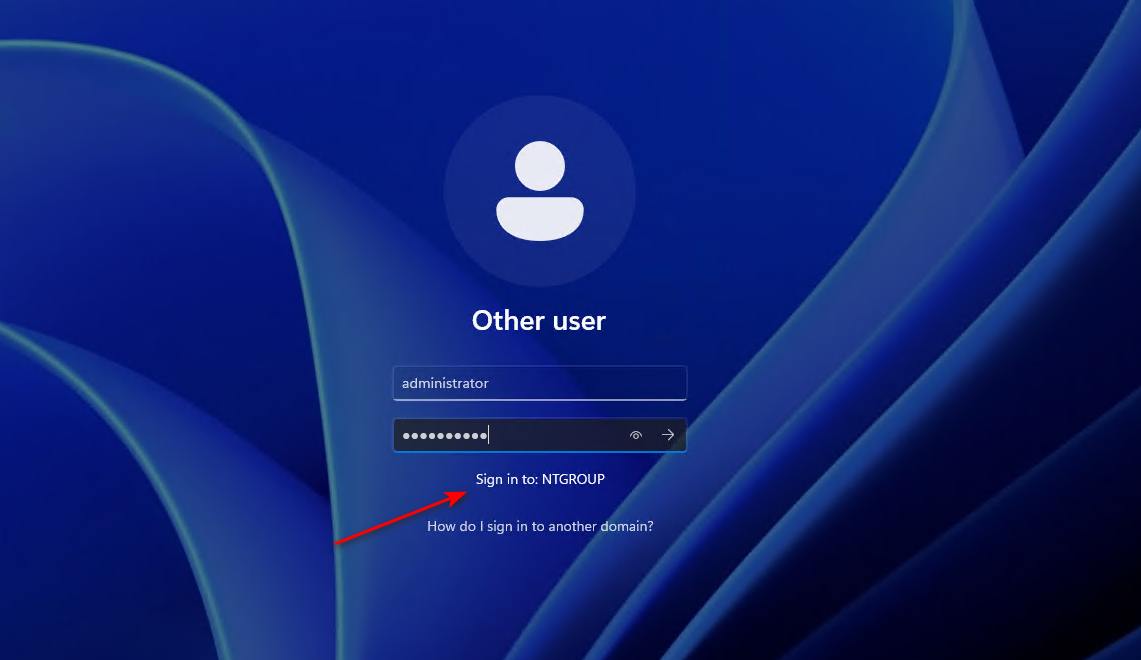
Đăng nhập bằng tài khoản Domain Admin vào hệ thống
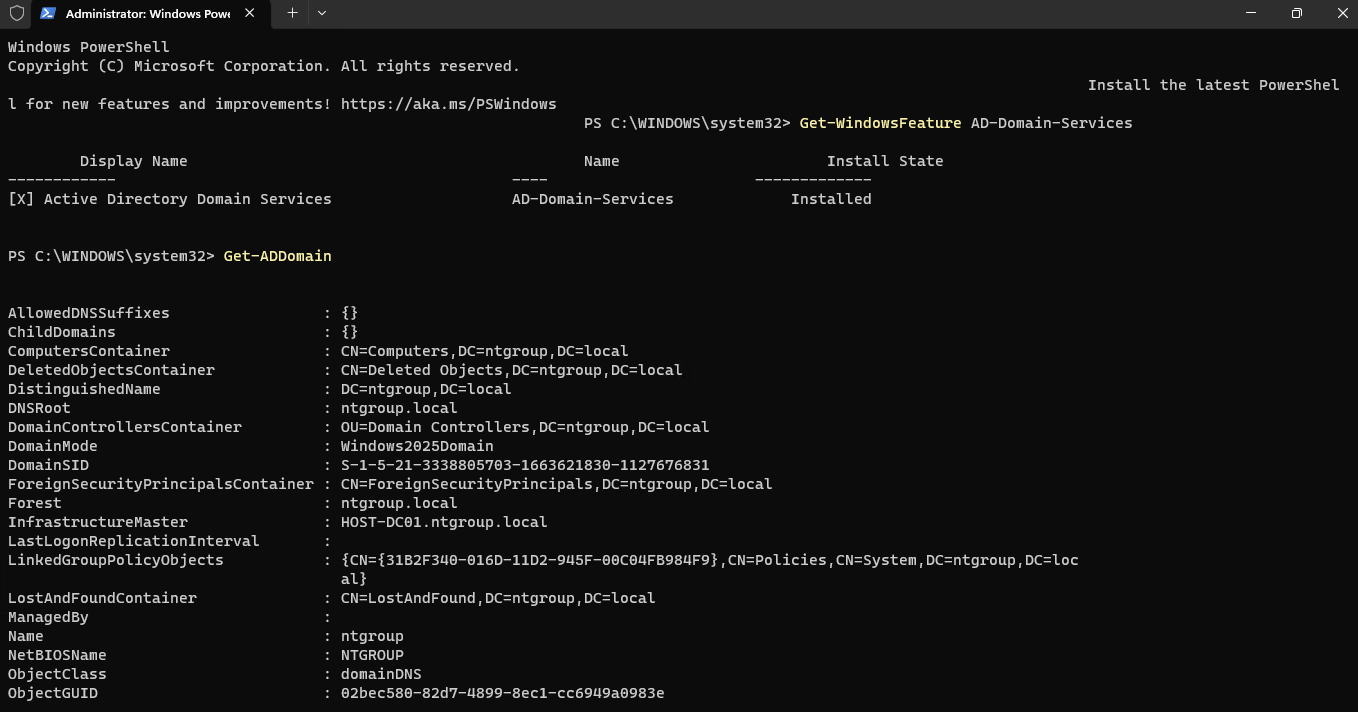
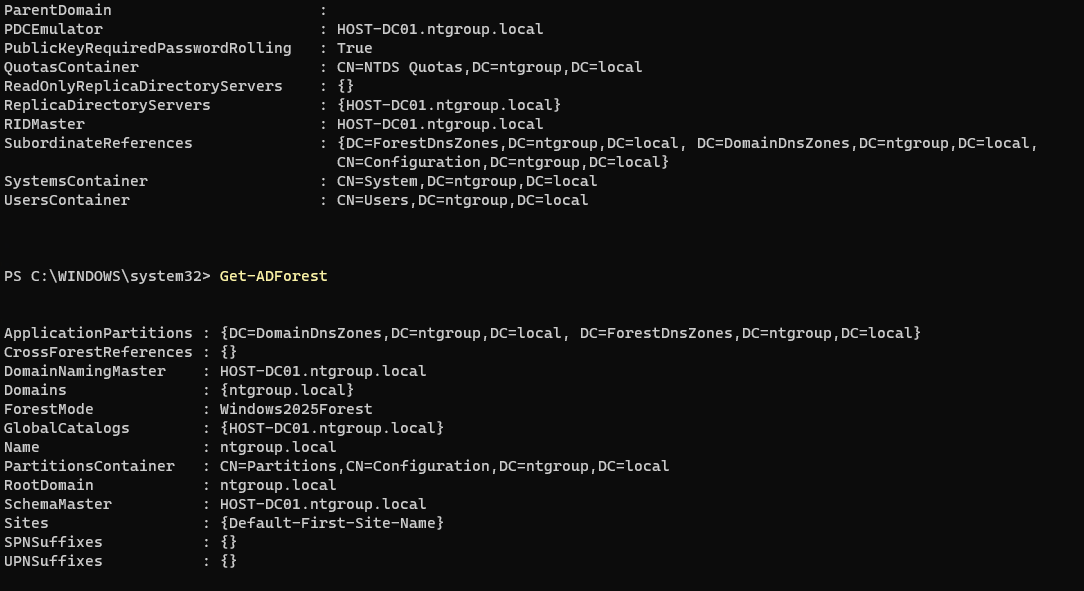
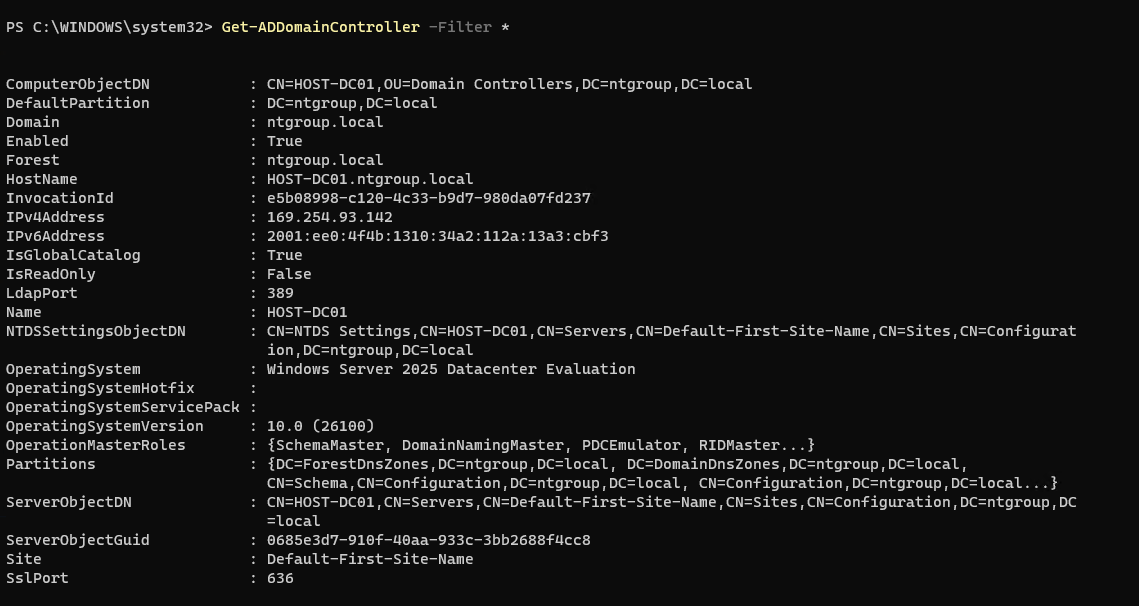
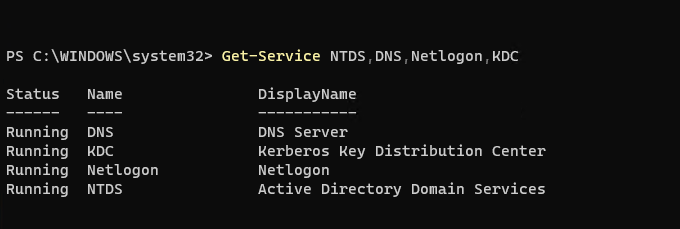
Lệnh kiểm tra kết quả thực hiện cài đặt dịch vụ Active Directory trên Windows Server 2025
Get-WindowsFeature AD-Domain-Services : Kiểm tra thông tin cài đặt
Get-ADDomain : Kiểm tra thông tin Domain
Get-ADForest : Kiểm tra thông tin về Forest
Get-ADDomainController -Filter * : Hiện thị thông tin Domain Controller
Get-Service NTDS,DNS,Netlogon,KDC
dcdiag /q : Kiểm tra thông tin các lỗi khác